wsuZ
Member
- Joined
- Aug 10, 2025
- Threads
- 1
- Messages
- 23
- Reaction score
- 44
- Location
- Northern Hemisphere
- Car(s)
- '25 Nissan Z
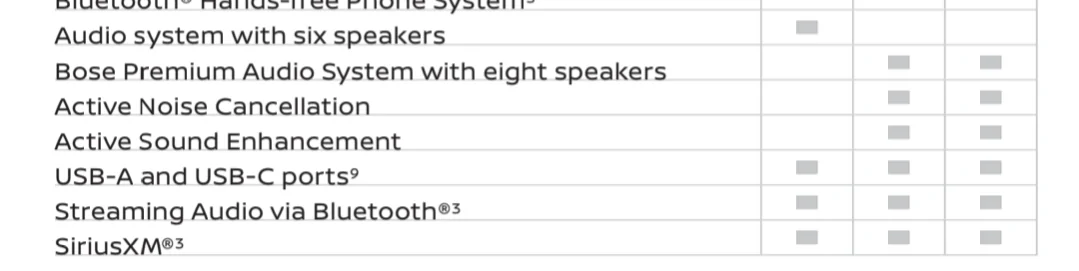
Just finished disabling my ASE/ASC also.
First, thanks to the OP for this thread, @bpeckham's thread, and @Mr. Mac's thread and the many posters who contributed.
Second, this is not cheaper than paying your local stealership but I'd rather invest in my own tools/experience than throw away money with a dealership that doesn't value a good customer relationship.
Third, modify at your own risk. Few high-level steps are below but not comprehensive. You can brick your ECU. Be careful.
You'll need:
First, thanks to the OP for this thread, @bpeckham's thread, and @Mr. Mac's thread and the many posters who contributed.
Second, this is not cheaper than paying your local stealership but I'd rather invest in my own tools/experience than throw away money with a dealership that doesn't value a good customer relationship.
Third, modify at your own risk. Few high-level steps are below but not comprehensive. You can brick your ECU. Be careful.
You'll need:
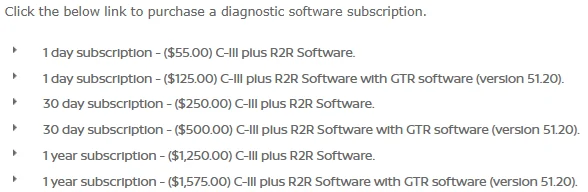
- One day subscription to Consult III (link)
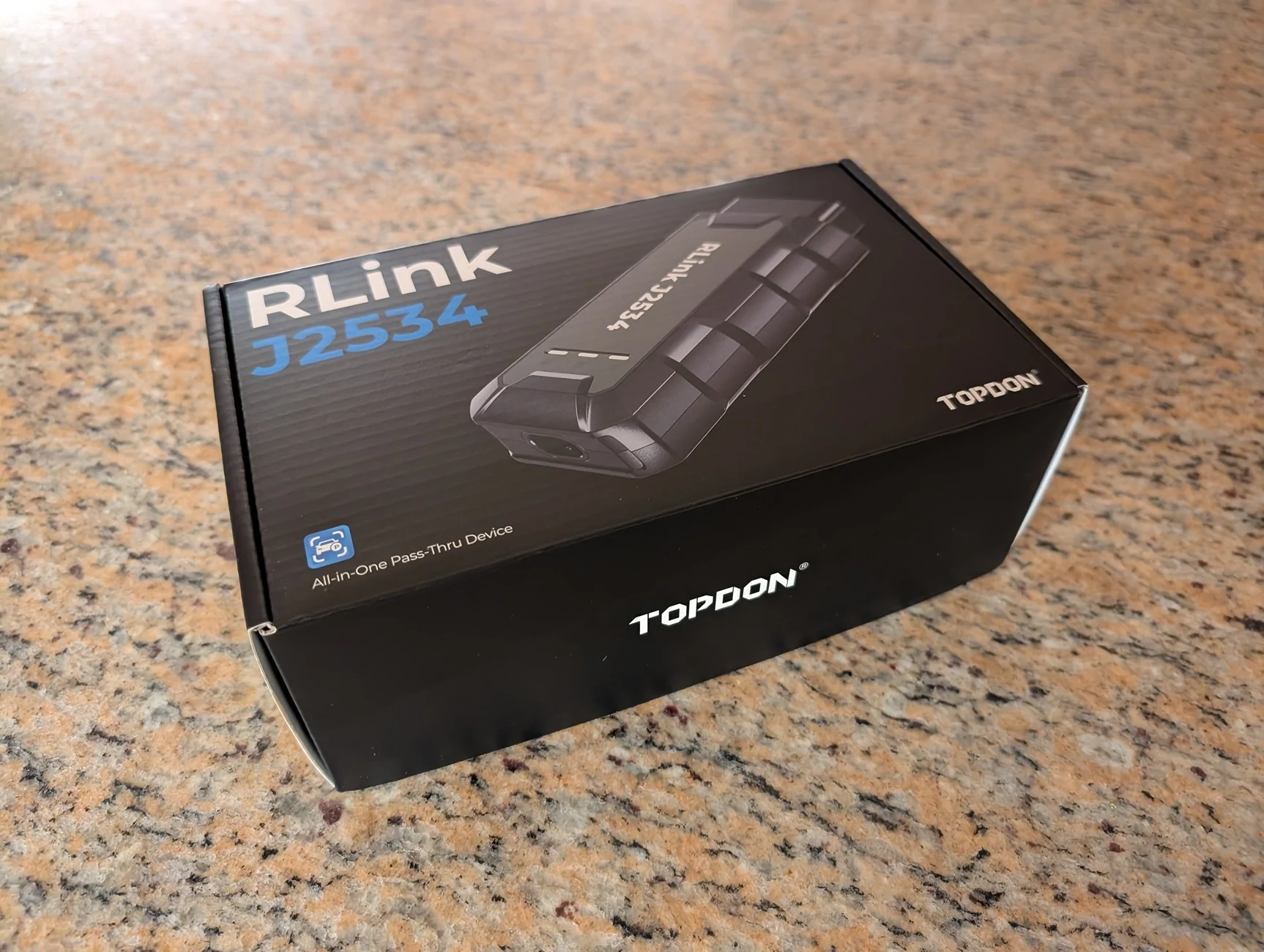
- J2534 compliant device. I purchased Topdon Rlink J2534 based on rec on the Consult III page
- Windows laptop w/ .Net 3.5 installed
- Net 3.5 is old and not installed by default. Windows 11 laptop kept timing out trying to install. I had to follow the steps here.
- After connecting to the OBD-II port, load up Consult. You'll be prompted for market type. Select USA/Canada aftermarket and enter your techinfo login. Do not select 'offline menu' - Consult will not allow you to make config/programming changes in offline mode (ref).
- Use 'Select VI/MI' to connect Consult to your J2534
- Select either of the Diagnosis options then select Audio Amp
- You'll need to change the CWG setting from 'Restricted' to 'Open' before Consult will allow you to edit the ASC/ANC settings.
- Edit the settings and enjoy!