JChandler82
Well-Known Member
- Thread starter
- #1
Hey everyone!
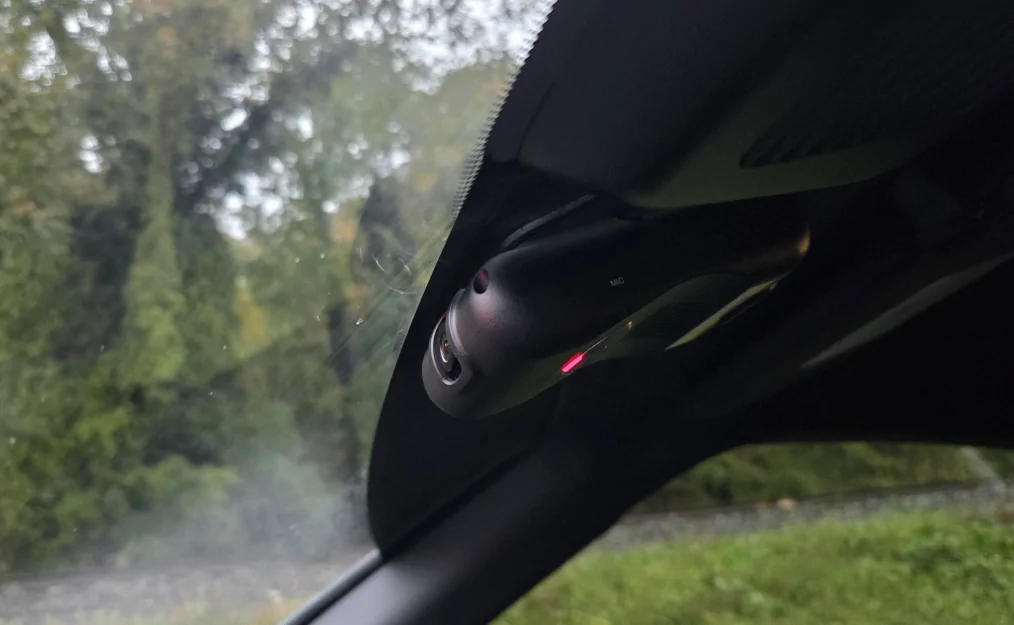
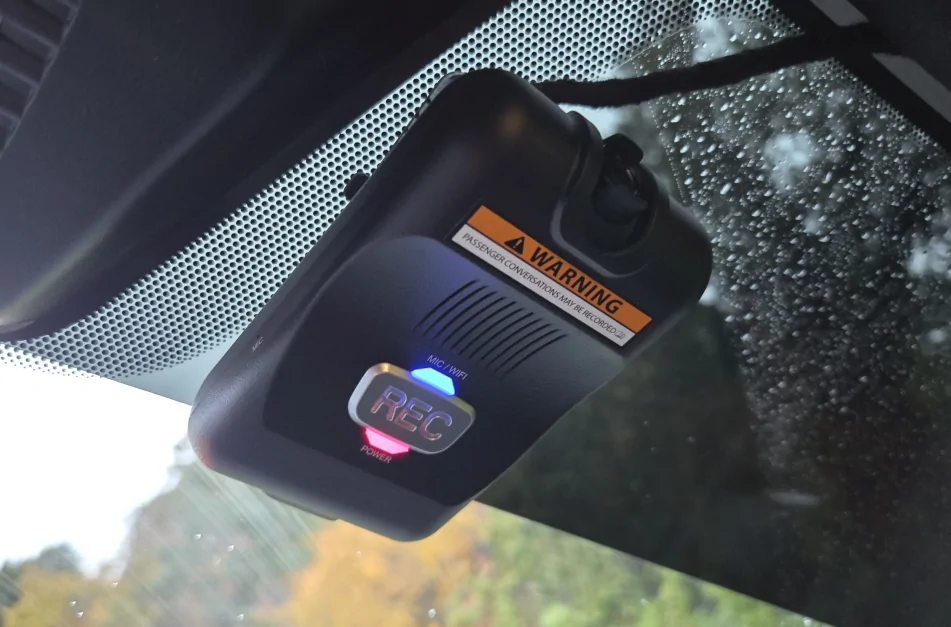
I wanted to share a quick guide for setting up the factory-installed dashcam in the Z. From what I can tell, most models didn’t come with it, and the setup info is practically nonexistent. My dealer had no clue, and I couldn’t find clear instructions anywhere online.
I’ve worked in IT for a long time, so struggling with something this simple was… let’s just say frustrating, to put it mildly. When I first got the car, I sat in my driveway for almost an hour trying to connect—only to fail, quite successfully. After months of driving around listening to it ding over every bump, I finally decided to give it another try. And wouldn’t you know it—it connected on the very first attempt! Same phone, same app, same setup—just a different location. I think that was the key.
IMPORTANT TIP:
When you connect to the camera’s Wi-Fi, your phone will notice there’s no internet connection (which makes sense). This was probably what tripped me up the first time.
Here’s what I think happened: after I connected to the camera’s Wi-Fi but before opening the mDrive app, my phone automatically switched back to my home Wi-Fi in the background—causing the app to fail the connection. I even tried deleting my home Wi-Fi from my phone at one point, but still had no luck.
The second time around, I was in my work parking garage, with Android Auto unplugged and no other Wi-Fi networks around—and it connected instantly. So keep that in mind when you try these steps.
Setup Steps:
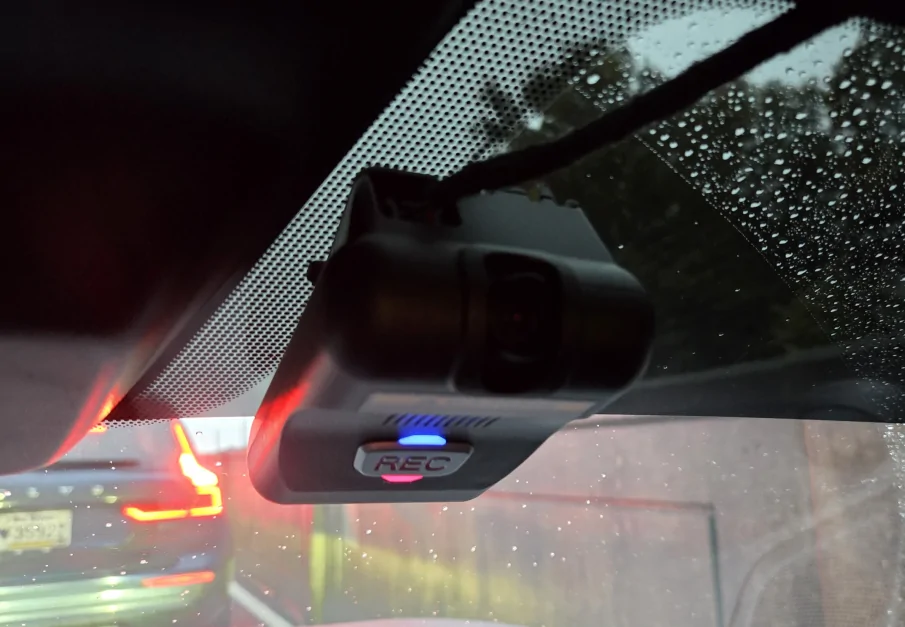
I know the camera isn’t exactly top-tier—but it’s already installed, tucked away neatly, and does what it’s supposed to do. So why not roll with it?
Hopefully this saves someone else a little time (and frustration)!
I wanted to share a quick guide for setting up the factory-installed dashcam in the Z. From what I can tell, most models didn’t come with it, and the setup info is practically nonexistent. My dealer had no clue, and I couldn’t find clear instructions anywhere online.
I’ve worked in IT for a long time, so struggling with something this simple was… let’s just say frustrating, to put it mildly.
When I first got the car, I sat in my driveway for almost an hour trying to connect—only to fail, quite successfully. After months of driving around listening to it ding over every bump, I finally decided to give it another try. And wouldn’t you know it—it connected on the very first attempt! Same phone, same app, same setup—just a different location. I think that was the key.IMPORTANT TIP:
When you connect to the camera’s Wi-Fi, your phone will notice there’s no internet connection (which makes sense). This was probably what tripped me up the first time.
Here’s what I think happened: after I connected to the camera’s Wi-Fi but before opening the mDrive app, my phone automatically switched back to my home Wi-Fi in the background—causing the app to fail the connection. I even tried deleting my home Wi-Fi from my phone at one point, but still had no luck.
The second time around, I was in my work parking garage, with Android Auto unplugged and no other Wi-Fi networks around—and it connected instantly. So keep that in mind when you try these steps.
Setup Steps:
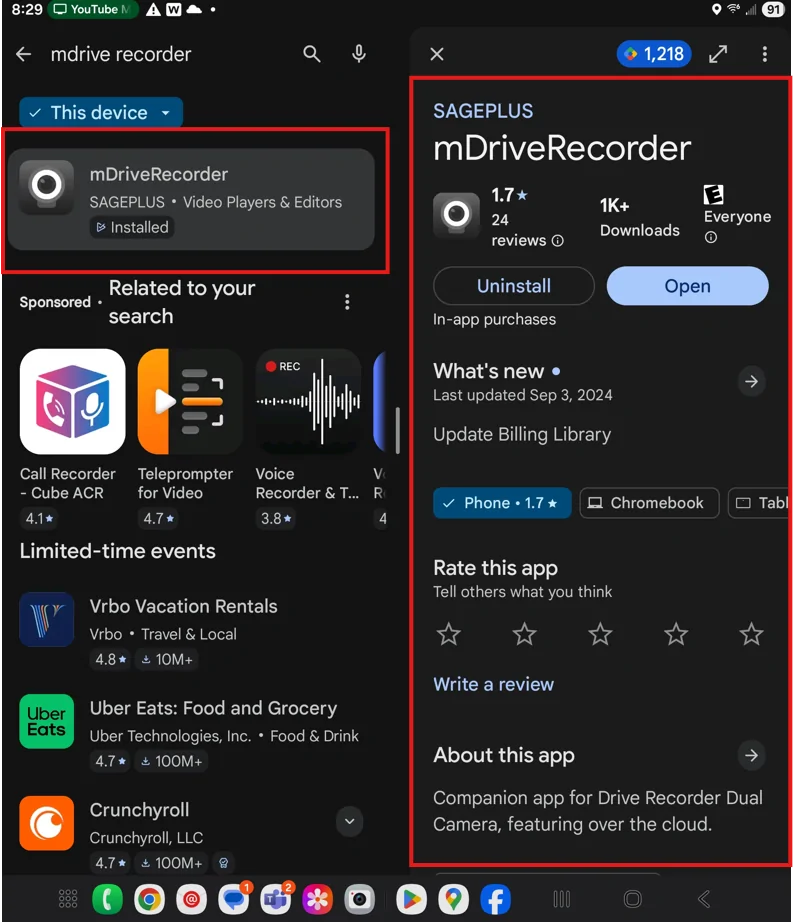
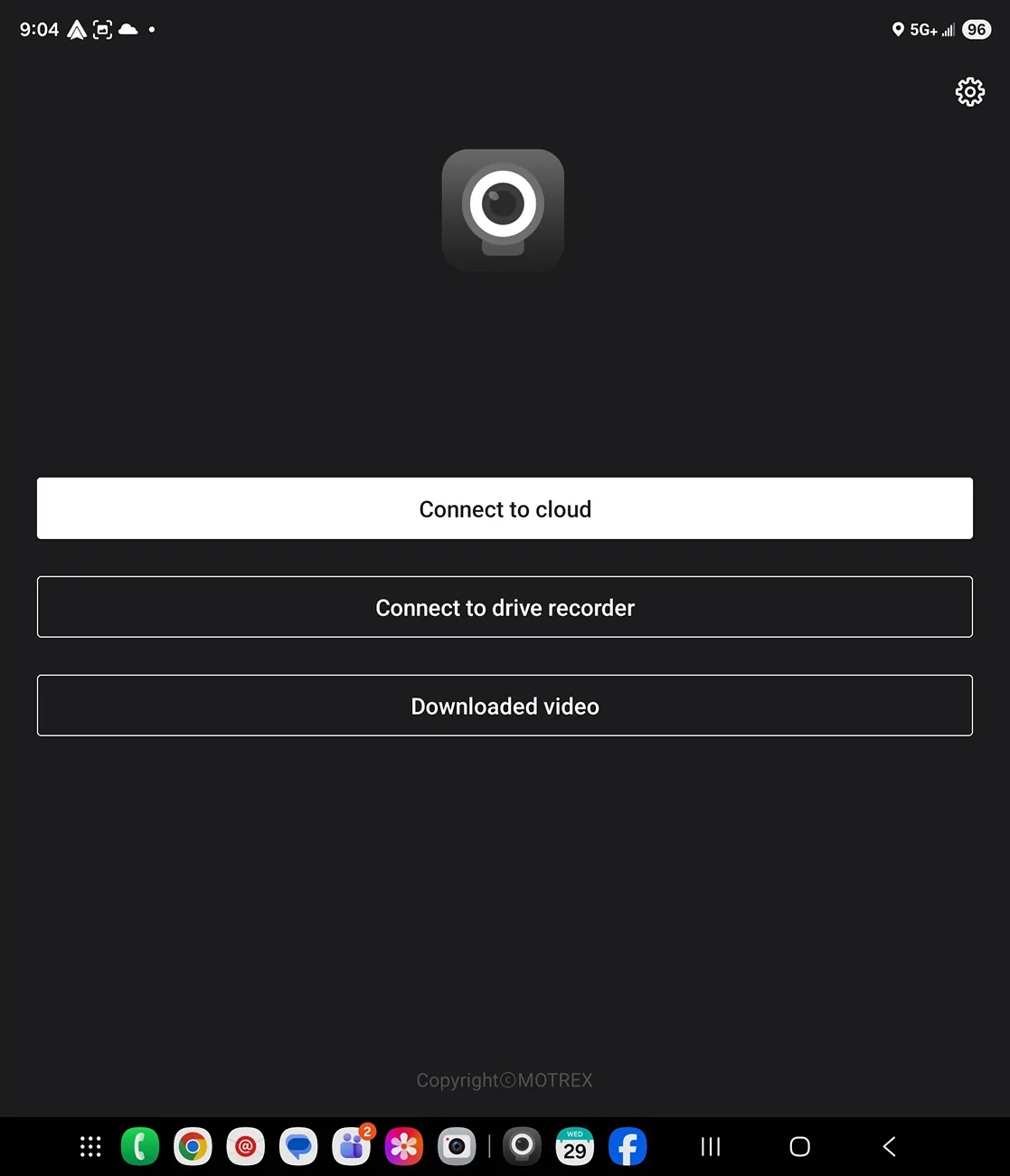
- Install the mDriveRecorder app from your app store.

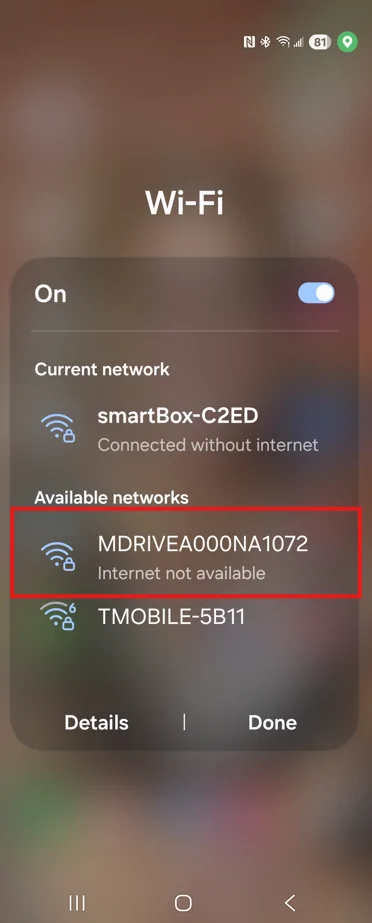
- Start the car and connect to the camera’s Wi-Fi. In your Wi-Fi list, look for something like MDRIVE***********
PASSWORD: 0123456789- Your phone will probably warn you there’s no internet—just confirm you want to stay connected.

- Your phone will probably warn you there’s no internet—just confirm you want to stay connected.
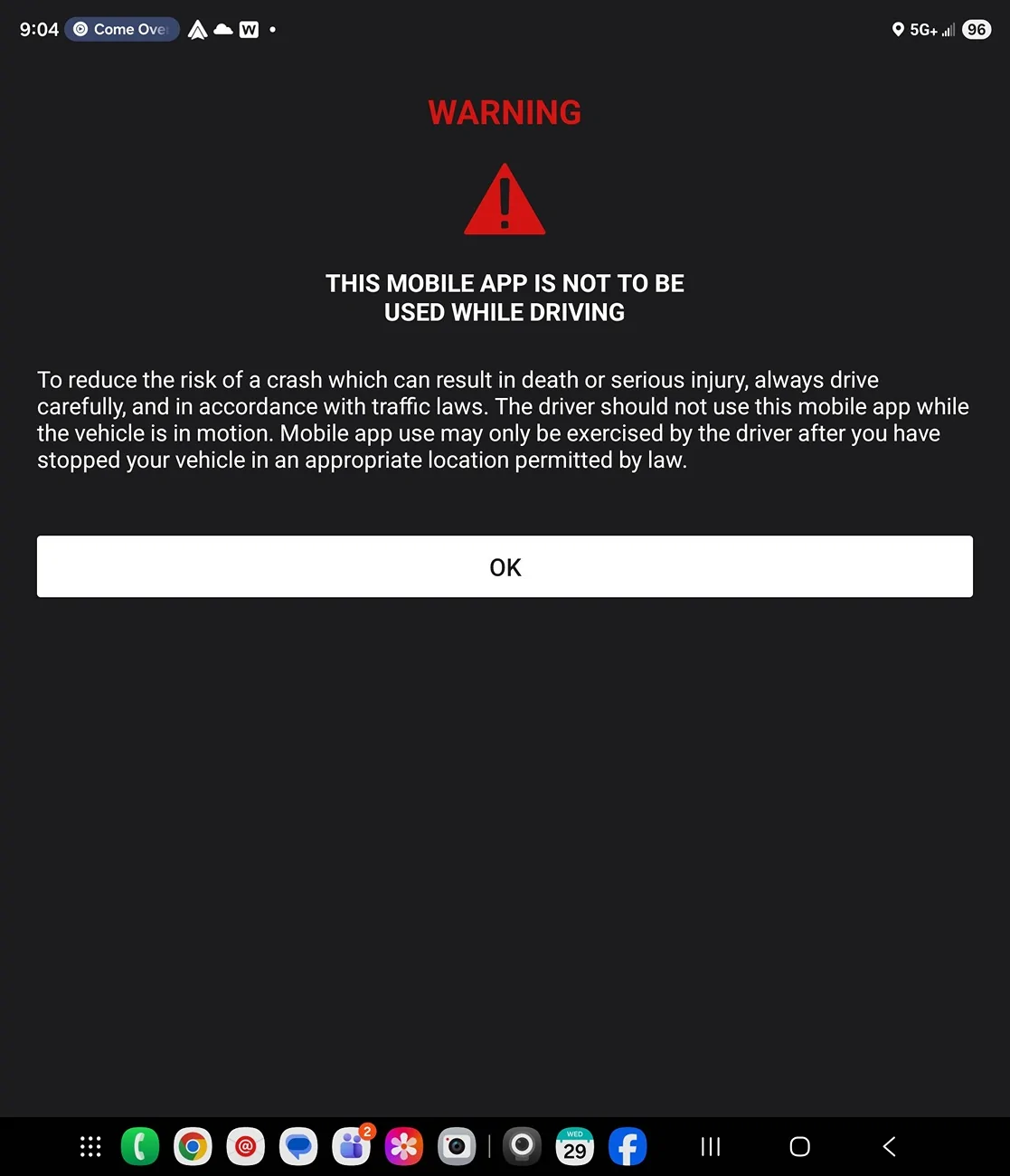
- Open the mDriveRecorder app and acknowledge the warning.

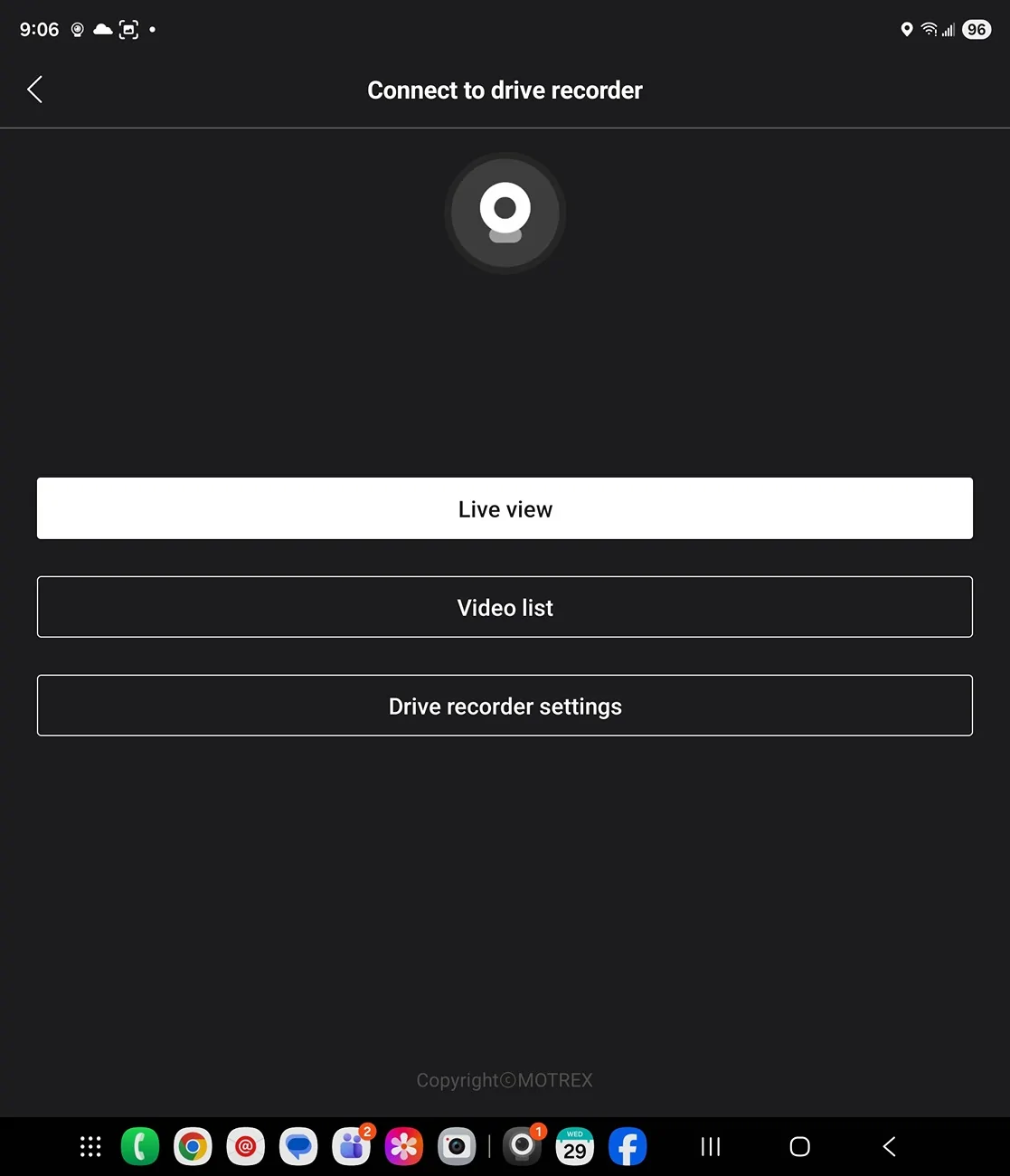
- Tap “Connect to Drive Recorder.”
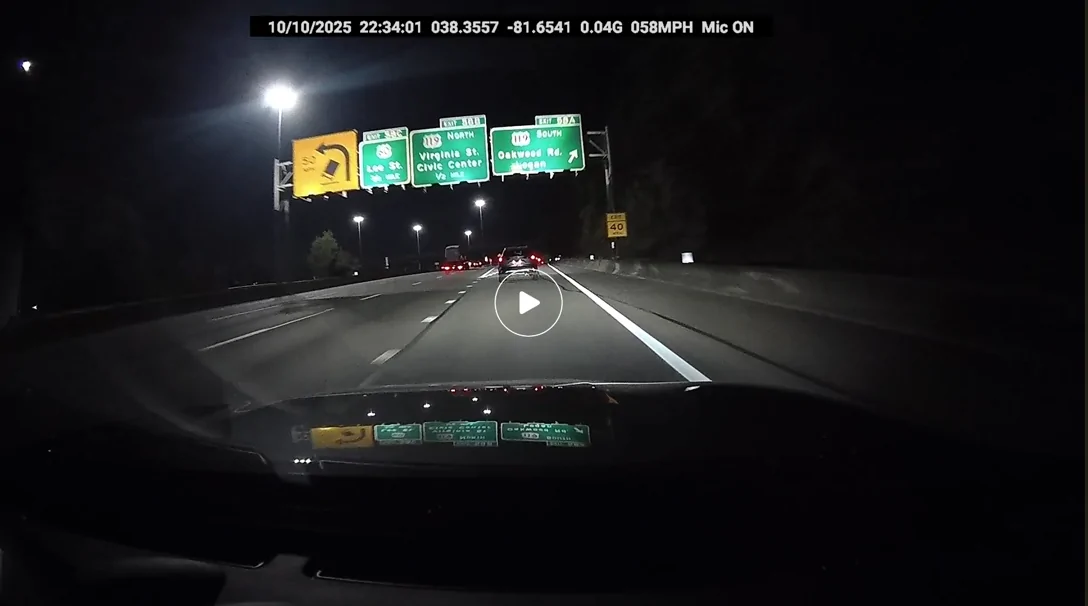
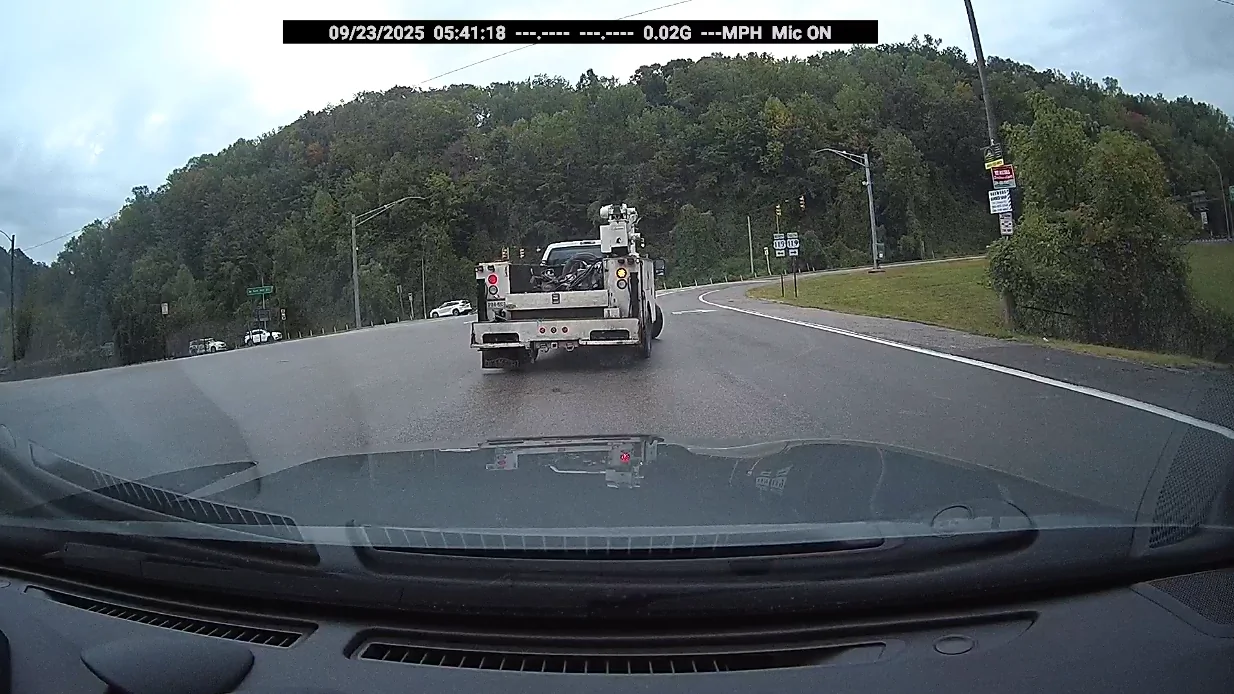
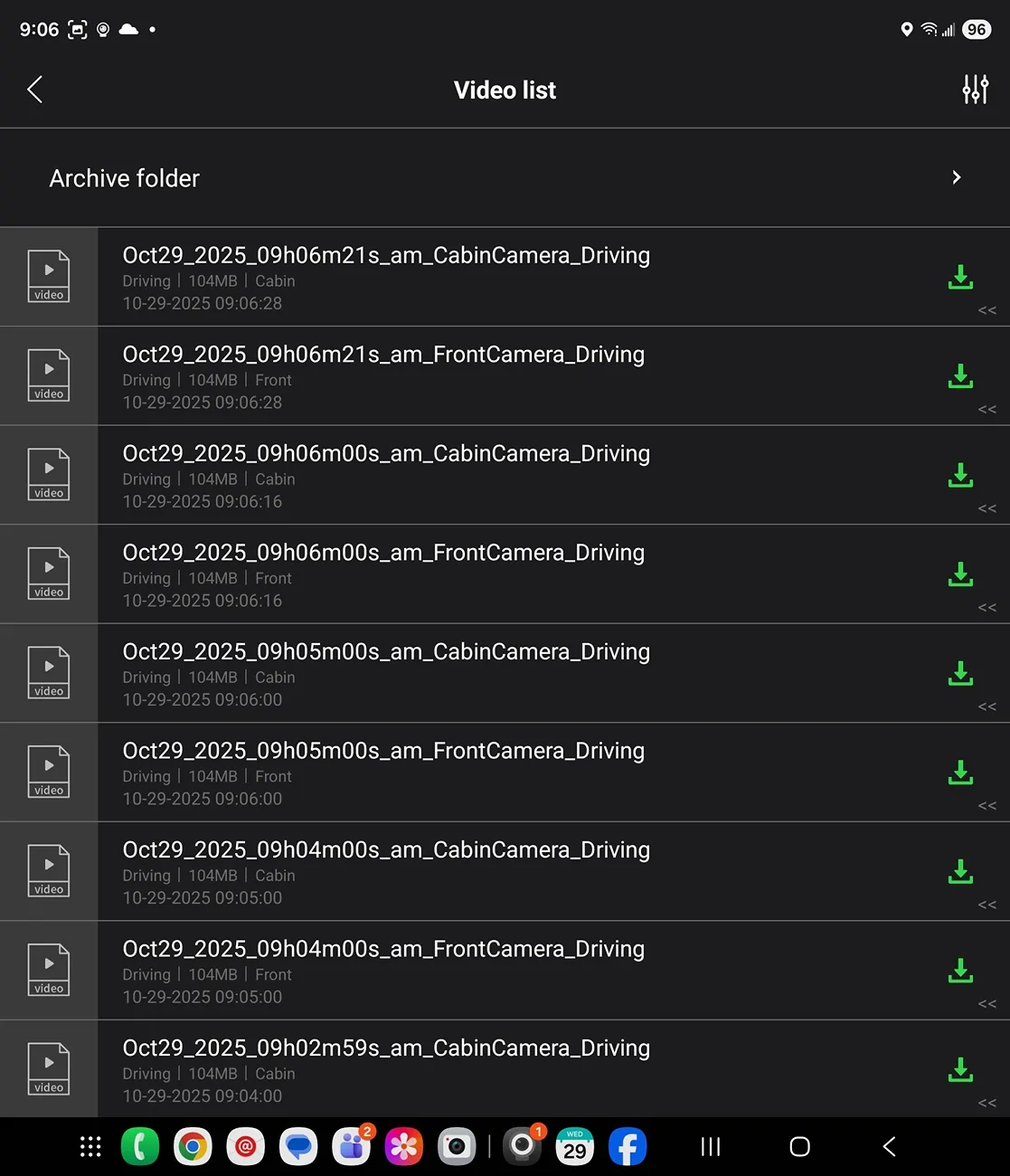
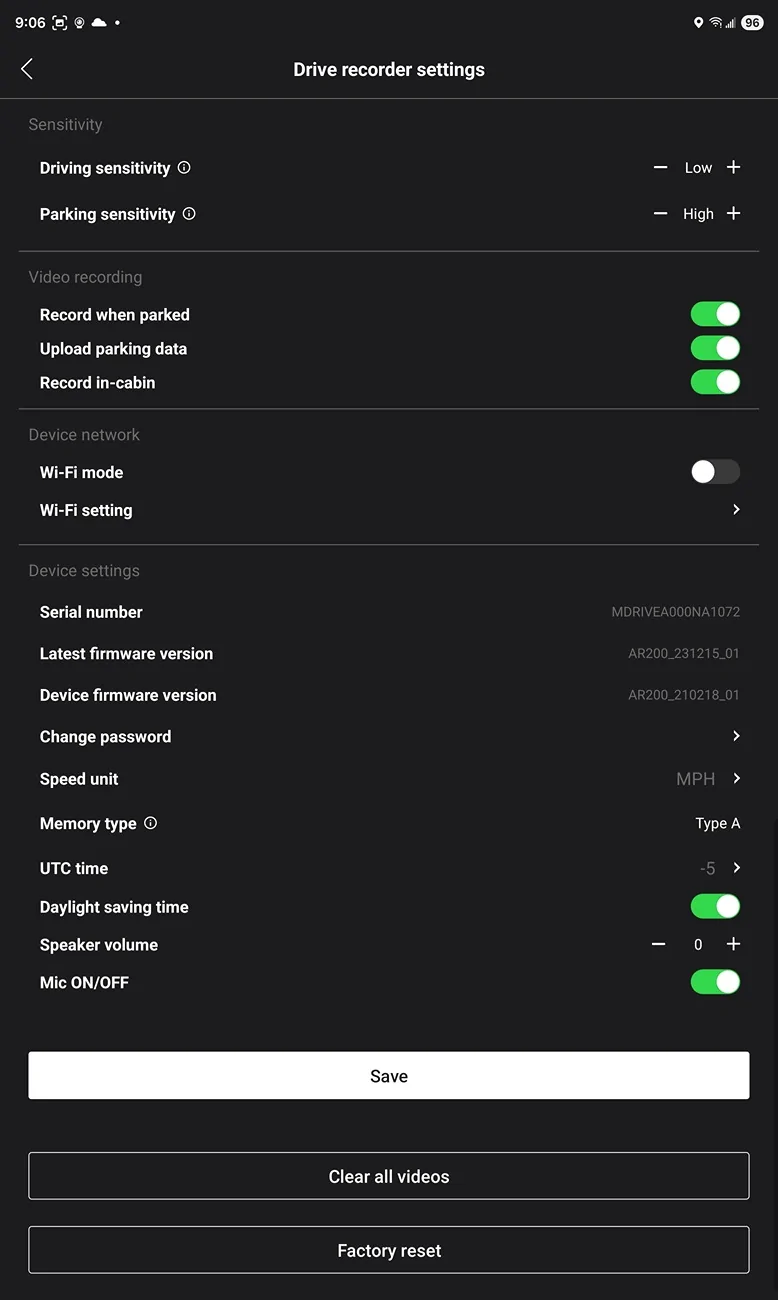
- From there, you can access Live View, Video List, and Drive Recorder Settings.

I know the camera isn’t exactly top-tier—but it’s already installed, tucked away neatly, and does what it’s supposed to do. So why not roll with it?
Hopefully this saves someone else a little time (and frustration)!
Last edited: